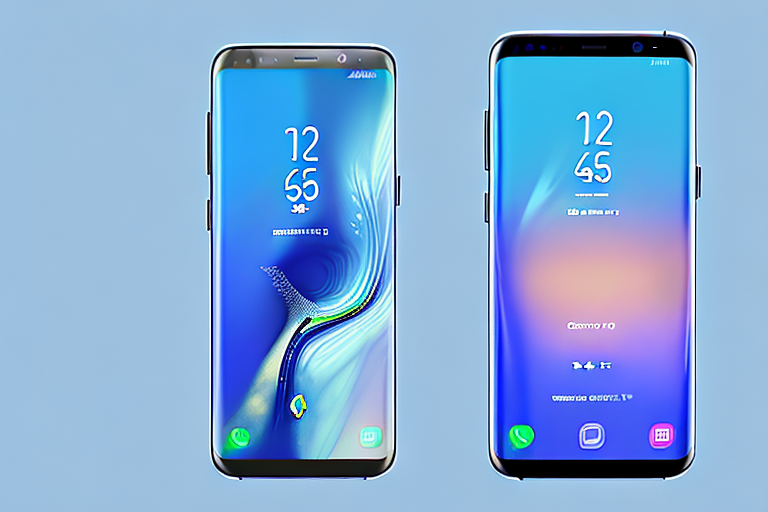
Taking a screenshot on your Galaxy S8 is a simple and useful feature that allows you to capture and save images of your screen. Whether you want to capture a funny conversation, save important information, or share something with others, knowing how to take a screenshot is essential. In this article, we will guide you through the process of capturing screenshots on your Galaxy S8 and provide you with some helpful tips and troubleshooting advice.
Understanding the Basics of Your Galaxy S8
Before diving into the screenshot-taking process, it’s important to familiarize yourself with the key features of your Galaxy S8. This will ensure that you have a seamless experience when using your device.
The Galaxy S8 is a flagship smartphone from Samsung that has garnered widespread acclaim for its cutting-edge features and sleek design. It is equipped with a stunning 5.8-inch Quad HD+ Super AMOLED display, which offers vibrant colors and sharp visuals. The device is powered by a powerful octa-core processor, ensuring smooth performance and effortless multitasking.
One of the standout features of the Galaxy S8 is its advanced camera capabilities. The 12-megapixel rear camera with Dual Pixel technology captures stunning photos with rich detail and vibrant colors. The front-facing camera, on the other hand, is an 8-megapixel shooter that is perfect for capturing high-quality selfies.
Key Features of the Galaxy S8
The Galaxy S8 boasts a range of impressive features that contribute to its popularity among users. Its sleek design, vibrant display, powerful processor, and advanced camera capabilities are just a few examples of what sets it apart from other smartphones on the market.
In addition to these features, the Galaxy S8 also offers a host of other functionalities that enhance the user experience. It is equipped with an iris scanner, which provides an extra layer of security by allowing users to unlock their device using their eyes. The device also supports wireless charging, making it convenient for users to charge their phone without the hassle of cables.
Furthermore, the Galaxy S8 is water and dust resistant, with an IP68 rating. This means that the device can withstand being submerged in up to 1.5 meters of water for up to 30 minutes, making it perfect for outdoor adventures or accidental spills.
Navigating the Galaxy S8 Interface
Getting comfortable with navigating the interface of your Galaxy S8 will make it easier to locate and access the necessary features for taking a screenshot. Familiarize yourself with the navigation buttons and gestures to ensure a smooth experience.
The Galaxy S8 features a sleek and intuitive interface that is easy to navigate. It utilizes Samsung’s proprietary user interface, called Samsung Experience, which is designed to provide a seamless and user-friendly experience.
At the bottom of the screen, you will find the navigation buttons, which consist of the home button, the back button, and the recent apps button. These buttons allow you to navigate through different screens and switch between apps with ease.
In addition to the navigation buttons, the Galaxy S8 also supports a range of gestures that can be used to navigate the interface. For example, you can swipe up from the bottom of the screen to access the app drawer, or swipe down from the top of the screen to view the notification panel.
By familiarizing yourself with these navigation buttons and gestures, you will be able to navigate your Galaxy S8 effortlessly and find the necessary features for taking a screenshot.
Preparing to Take a Screenshot
Before you can capture a screenshot, there are a few steps you need to take to ensure everything is set up correctly. Let’s walk through the necessary preparations.
When it comes to capturing a screenshot, it’s important to have all the necessary settings in place. By following these steps, you’ll be able to take screenshots effortlessly and efficiently.
Checking Your Settings
The first step in preparing to take a screenshot is to check your device’s settings. This ensures that the screenshot feature is enabled and ready to use. To do this, go to the Settings menu on your Galaxy S8.
Once you’re in the Settings menu, take a moment to familiarize yourself with the various options available. Look for the option related to screenshots. It may be listed under “Display” or “Advanced Features,” depending on your device’s software version.
If you’re having trouble locating the screenshot option, you can use the search function within the Settings menu to quickly find it. Simply type in “screenshot” or “capture” and the relevant option should appear.
Once you’ve found the screenshot option, check if it’s enabled. If it’s already enabled, you’re good to go. However, if it’s not enabled, simply toggle the switch to turn it on. This will ensure that you can capture screenshots whenever you need to.
Opening the Desired Screen
Now that you’ve confirmed that the screenshot feature is enabled, it’s time to navigate to the screen that you wish to capture. Whether it’s a website, a text message conversation, or an app interface, make sure it’s displayed on your Galaxy S8.
Take a moment to think about what you want to capture in the screenshot. Is it a funny conversation with a friend? A stunning view from a website? Or perhaps an important piece of information from an app? Whatever it is, make sure it’s ready to be captured.
If you’re capturing a website, ensure that it’s fully loaded and displayed correctly on your screen. Double-check that all the elements you want to include in the screenshot are visible and positioned as desired.
For text message conversations, make sure the conversation thread you want to capture is open and visible. Scroll through the messages if needed to ensure that the entire conversation is included in the screenshot.
If you’re capturing an app interface, open the app and navigate to the specific screen you want to capture. Make sure all the relevant information or features are displayed and ready to be captured in the screenshot.
By taking the time to properly set up the desired screen, you’ll ensure that your screenshot captures exactly what you want, without any missing or irrelevant information.
Different Methods to Capture a Screenshot
Now that you’ve prepared your device, it’s time to explore the different methods available to capture a screenshot on your Galaxy S8. There are multiple ways to do this, so choose the one that suits you best.
Using the Button Combination
This is perhaps the most common and straightforward method of capturing a screenshot on the Galaxy S8. Simply press and hold the Power button and the Volume Down button simultaneously for a few seconds. You should see a flash on the screen, indicating that the screenshot has been taken.
Utilizing the Palm Swipe Feature
The Galaxy S8 also offers a unique feature that allows you to capture a screenshot by swiping the edge of your hand across the screen. To activate this feature, go to the Settings menu, select “Advanced features,” and enable the “Palm swipe to capture” option. Once enabled, simply swipe your hand across the screen from left to right or right to left to take a screenshot.
Taking a Screenshot through the Notification Panel
If you prefer a quick and easy method that doesn’t involve pressing any physical buttons, you can use the notification panel to capture a screenshot on your Galaxy S8. Simply swipe down from the top of the screen to open the notification panel, and then tap the “Screenshot” button. The screenshot will be saved to your device’s gallery.
Editing and Sharing Your Screenshot
Now that you’ve successfully taken a screenshot, it’s time to explore some editing tools and learn how to share your captured images with others.
Accessing Your Screenshots
To access your screenshots, simply open the Gallery app on your Galaxy S8. Look for a folder labeled “Screenshots” or a similar name, where all your captured images will be stored. From here, you can view, edit, and share your screenshots.
Basic Editing Tools
The Gallery app offers a variety of basic editing tools that can help you enhance your screenshots. You can crop, rotate, adjust brightness and contrast, apply filters, and more. Experiment with these tools to make your screenshots look even more impressive.
Sharing Options for Your Screenshot
Once you’ve edited your screenshot to your satisfaction, it’s time to share it with others. The Galaxy S8 provides several sharing options, including sending the image via email, messaging apps, social media platforms, or saving it to cloud storage for easy access across devices.
Troubleshooting Common Issues
While capturing screenshots on your Galaxy S8 is usually a smooth process, you may encounter some common issues along the way. Here are a few troubleshooting tips to help you overcome them.
Screenshot Not Working
If you find that the screenshot feature is not working on your Galaxy S8, double-check that it’s enabled in your device’s settings. If it’s already enabled and still not working, try restarting your device or contacting customer support for further assistance.
Screenshot Quality Issues
If you’re unsatisfied with the quality of your screenshots, consider adjusting your device’s display settings for better resolution. Additionally, make sure your screen is clean and free from smudges or dirt that may affect the image quality.
Problems with Screenshot Editing and Sharing
If you encounter any issues while editing or sharing your screenshots, ensure that you have the necessary permissions and access to the appropriate apps or platforms. If the problem persists, try reinstalling the app or contacting the app developer for support.
By following these step-by-step instructions and utilizing the tips provided, you can easily capture, edit, and share screenshots on your Galaxy S8. This handy feature will definitely come in handy during various occasions, making it easier for you to save and share important moments or information with others. Happy screenshotting!
Enhance Your Screenshots with GIFCaster
Ready to take your Galaxy S8 screenshots to the next level? With GIFCaster, you can add a touch of personality and fun to your captures. Turn a simple work message into a celebration or express your creativity by embellishing your screenshots with animated GIFs. Don’t just share a screenshot; make it memorable and engaging with GIFCaster. Start using the GIFCaster App today and see the difference for yourself!