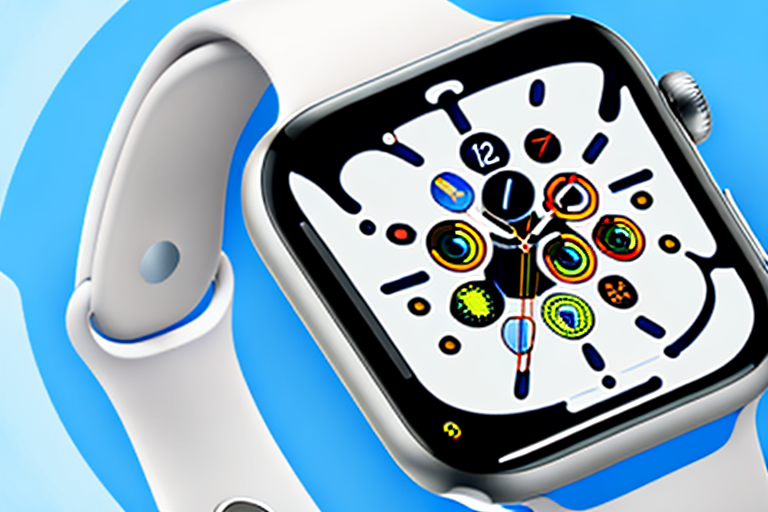
Apple Watch is a versatile wearable device that offers a wide range of features and functionalities. One of its useful features is the ability to capture screenshots. Whether you want to capture a memorable conversation, monitor your fitness progress, or simply share an interesting moment with your friends, taking a screenshot on your Apple Watch is a straightforward process.
Understanding the Basics of Your Apple Watch
Before we dive into the process of taking screenshots on your Apple Watch, let’s take a moment to familiarize ourselves with the basic components and functionalities of this remarkable device.
The Apple Watch is a revolutionary wearable device that combines the convenience of a watch with the power of a smartphone. It is designed to seamlessly integrate into your daily life, providing you with quick access to important information and enhancing your overall productivity.
The Functionality of Apple Watch Buttons
Your Apple Watch comes equipped with a few buttons that serve different purposes. The Digital Crown, located on the side of the watch, can be rotated to navigate various apps and scroll through content. It functions as a versatile input mechanism, allowing you to zoom in and out, adjust volume, and even act as a home button.
The side button, located just below the Digital Crown, can be pressed to access the app switcher or invoke Siri. This button provides quick and easy access to your most frequently used apps, allowing you to switch between them effortlessly. Siri, Apple’s virtual assistant, can help you perform various tasks on your watch, such as setting reminders, sending messages, and even making phone calls.
Setting Up Your Apple Watch
Prior to taking screenshots, it’s essential to set up your Apple Watch correctly. Pairing your watch with your iPhone is a simple process that ensures seamless communication between the two devices. Once paired, you can enjoy features like receiving notifications, making calls, and even tracking your fitness activities.
In addition to pairing, it is important to download the necessary apps that complement your lifestyle. Whether you’re a fitness enthusiast, a music lover, or a productivity guru, there are countless apps available on the App Store that can enhance your Apple Watch experience. From tracking your heart rate during workouts to controlling your smart home devices, the possibilities are endless.
Customizing your watch face is another crucial step in setting up your Apple Watch. With a wide range of watch faces to choose from, you can personalize your device to suit your preferences and style. Whether you prefer a classic analog look or a vibrant digital display, there is a watch face that will resonate with your personality.
By taking the time to personalize your watch, you are not only making it aesthetically pleasing but also optimizing its functionality. You can add complications, which are small widgets that provide quick access to information like weather updates, calendar events, and activity progress. This allows you to glance at your watch and get important information at a glance.
Furthermore, you can customize the layout and arrangement of apps on your watch’s home screen, making it easier to access your favorite apps with a single tap. Organizing your apps based on your usage patterns can significantly improve your efficiency and streamline your daily interactions with your Apple Watch.
Overall, understanding the basics of your Apple Watch and setting it up properly are essential steps in maximizing your experience with this remarkable device. By familiarizing yourself with the functionalities of the buttons, downloading relevant apps, and customizing your watch face, you are well on your way to unlocking the full potential of your Apple Watch.
Enabling Screenshots on Your Apple Watch
To begin capturing screenshots on your Apple Watch, follow the steps below:
Navigating the Watch Settings
On your Apple Watch, navigate to the Settings app. You can find this app by tapping on the Digital Crown and searching for the gear-shaped icon.
The Settings app is where you can customize various features and preferences on your Apple Watch. It allows you to personalize your device according to your preferences and needs.
Once you open the Settings app, you’ll be greeted with a range of options and settings that you can explore. From adjusting the brightness to managing notifications, the Settings app is your gateway to customizing your Apple Watch experience.
Activating the Screenshot Feature
In the Settings app, scroll down and look for the “General” option. Tap on it to access additional settings.
The General settings encompass a wide range of options that affect the overall behavior and functionality of your Apple Watch. It’s where you can find settings related to accessibility, software updates, and more.
Once you’re in the General settings, you’ll notice a list of options that you can explore. From language and region settings to Siri and software update preferences, the General settings provide you with the ability to fine-tune your Apple Watch to your liking.
Within the General settings, scroll down and find the “Enable Screenshots” toggle. Once located, toggle it to the “On” position.
Enabling the screenshot feature on your Apple Watch allows you to capture and save moments from your device’s screen. Whether you want to capture a memorable achievement in a game or share a funny conversation, screenshots can be a valuable tool for preserving and sharing moments.
Congratulations! You have successfully enabled the screenshot feature on your Apple Watch.
Now that you have activated the screenshot feature, you can start capturing screenshots whenever you want. Simply press the side button and the Digital Crown simultaneously, and your Apple Watch will capture an image of the current screen.
After taking a screenshot, you can find it in the Photos app on your Apple Watch or sync it to your iPhone’s Photos app for further editing and sharing.
Remember, screenshots can be a useful way to document important information or share interesting content with others. Whether it’s a step-by-step guide, a funny meme, or a beautiful watch face, screenshots allow you to capture and preserve moments that matter to you.
Taking a Screenshot on Your Apple Watch
Now that you have activated the screenshot feature, let’s explore how you can capture screenshots on your Apple Watch.
Step-by-Step Guide to Capturing Screenshots
To take a screenshot on your Apple Watch, follow these simple steps:
- Open the app or screen that you want to capture. Make sure it is displayed on your Apple Watch.
- Position your thumb and index finger right above the Digital Crown and the side button respectively.
- Simultaneously press and hold the Digital Crown and side button for a brief moment.
- You will notice a flash on your Apple Watch screen, indicating that the screenshot has been successfully captured.
Tips for Clear and Effective Screenshots
Here are a few tips to help you capture clear and effective screenshots on your Apple Watch:
- Ensure that your fingers do not obstruct the screen while pressing the buttons to take a screenshot.
- Make sure the content on your Apple Watch screen is properly aligned and visible before capturing the screenshot.
- Take multiple screenshots if necessary to capture a sequence of actions or conversations.
- Consider adjusting the brightness settings on your Apple Watch to improve the clarity of your screenshots.
Accessing and Sharing Your Screenshots
Once you have captured your screenshots, you may want to access them on your iPhone or share them with others. Let’s explore how you can do this.
Locating Your Screenshots on Your iPhone
When you take a screenshot on your Apple Watch, it automatically syncs with your paired iPhone. To access your screenshots:
- Unlock your iPhone and navigate to the Photos app.
- Within the Photos app, select the “Albums” tab at the bottom of the screen.
- Scroll down until you find the “Screenshots” album.
- Tap on the album to view all the screenshots captured from your Apple Watch.
Sharing Screenshots via Various Platforms
Your possibilities are endless when it comes to sharing your Apple Watch screenshots. Whether you prefer to share them through messaging apps, social media platforms, or email, simply select the desired screenshot from your Photos app and follow the sharing process within the chosen platform.
Troubleshooting Common Screenshot Issues
While capturing screenshots on your Apple Watch is typically a smooth process, you may encounter the occasional issue. Let’s explore some of these issues and how to resolve them.
Resolving Screenshot Functionality Problems
If you are unable to capture screenshots on your Apple Watch, ensure that the “Enable Screenshots” toggle is activated in the settings. Restarting both your iPhone and Apple Watch can also help resolve any temporary glitches.
Addressing Synchronization Issues with iPhone
If your screenshots are not syncing between your Apple Watch and iPhone, make sure that both devices are connected via Bluetooth and are running the latest software updates. Additionally, double-check that the iCloud Photo Library is enabled on your iPhone.
With these troubleshooting tips, you should be able to overcome any hurdles that may arise when taking screenshots on your Apple Watch.
Now that you have learned how to make a screenshot on your Apple Watch, let your creativity flow. Capture those special moments, share your achievements, and make the most of this powerful feature. Enjoy exploring the endless possibilities of your Apple Watch!
Enhance Your Screenshots with GIFCaster
Ready to take your Apple Watch screenshots to the next level? With GIFCaster, you can add a touch of personality and fun to your captures. Turn a simple screenshot into a lively conversation piece by incorporating GIFs that express your mood or celebrate your moments. Don’t just share a screenshot; make it stand out with the creative flair that only GIFCaster can provide. Start using the GIFCaster App today and give your screenshots the life they deserve!