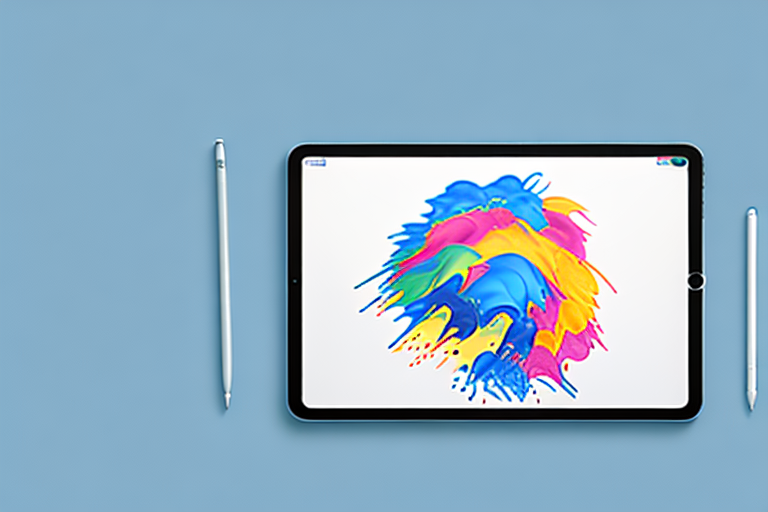
In today’s digital age, capturing screenshots has become an essential skill for many iPad Pro users. Whether you want to save a funny meme, share an interesting article, or document a software bug, knowing how to take a screenshot is crucial. In this article, we will walk you through the step-by-step process of capturing, editing, and sharing screenshots on your iPad Pro. So, let’s dive in and explore the world of iPad Pro screenshots!
Understanding the Basics of iPad Pro
Before we delve into the intricacies of capturing screenshots, let’s first familiarize ourselves with the iPad Pro. Renowned for its powerful performance and gorgeous Retina display, the iPad Pro offers a seamless user experience. Its sleek and modern design, combined with the latest functionality, makes it a favorite among tech enthusiasts and creative professionals alike.
The Design and Functionality of iPad Pro
The iPad Pro sports a stunning edge-to-edge Liquid Retina display, which provides a vibrant and immersive visual experience. Whether you’re watching movies, editing photos, or working on creative projects, the iPad Pro’s display delivers exceptional clarity and color accuracy. The ProMotion technology ensures smooth scrolling and responsiveness, making every interaction with your device feel natural and fluid.
Under the hood, the iPad Pro is powered by Apple’s A-series chip, which offers remarkable performance and efficiency. Whether you’re running demanding apps or multitasking with ease, the iPad Pro can handle it all. With its powerful processor, you can edit 4K videos, play graphics-intensive games, and run professional software without any lag or slowdown.
One of the standout features of the iPad Pro is its compatibility with the Apple Pencil. This innovative stylus allows you to unleash your creative potential and take notes with remarkable precision. Whether you’re an artist, designer, or student, the Apple Pencil provides a natural and intuitive way to interact with your iPad Pro. With its pressure sensitivity and tilt functionality, you can create detailed drawings, annotate documents, and navigate through your device with ease.
Familiarizing with the iPad Pro Buttons
To capture a screenshot on your iPad Pro, you need to be familiar with its buttons. Located on the top right edge, the Sleep/Wake button is used to turn your iPad Pro on or off and put it to sleep or wake it up. This button is not only essential for capturing screenshots but also for managing the power and sleep functions of your device.
The Volume Up and Volume Down buttons, positioned on the right side of the iPad Pro, allow you to adjust the audio output. Whether you’re listening to music, watching videos, or playing games, these buttons give you quick and convenient control over the volume levels. When capturing screenshots, it’s important to know the location of these buttons as they can affect the appearance and functionality of the captured image.
In addition to these buttons, the iPad Pro also features a Home button, which is located on the front of the device. This button allows you to quickly return to the home screen, access Siri, and perform various other functions. While capturing screenshots, the Home button is not directly involved, but it plays a crucial role in navigating through your device and accessing different apps and features.
Now that you have a better understanding of the iPad Pro’s design, functionality, and buttons, you’re ready to explore the process of capturing screenshots. Stay tuned for the next section, where we’ll guide you through the step-by-step instructions to capture and save screenshots on your iPad Pro.
Preparing Your iPad Pro for Screenshots
Before we jump into capturing screenshots, let’s take a moment to optimize your iPad Pro settings for the best screenshot experience.
When it comes to capturing screenshots on your iPad Pro, there are a few key settings and adjustments you can make to ensure that the process is seamless and the results are top-notch. By following these steps, you’ll be able to capture clear and legible screenshots with ease.
Checking Your iPad Pro Settings
To ensure that you have a seamless screenshot experience, it’s important to check your iPad Pro settings. By default, screenshots are allowed, but it’s always a good idea to double-check to avoid any potential issues later on.
To access your iPad Pro settings, simply tap on the “Settings” app on your home screen. From there, navigate to “Media & Purchases” and then select “Content Restrictions.” In this section, you’ll find various options related to content restrictions, including the ability to enable or disable screenshots.
Make sure that the toggle for screenshots is enabled. This will ensure that you can capture screenshots without any restrictions. By taking this simple step, you’ll be ready to capture screenshots whenever you need them.
Ensuring Optimal Screen Brightness
Another aspect to consider before capturing a screenshot is your iPad Pro’s screen brightness. Adjusting the brightness to an optimal level will not only enhance your overall viewing experience but also ensure that your screenshots are clear and legible.
Fortunately, adjusting the brightness on your iPad Pro is a breeze. Simply swipe down from the top right corner of your iPad Pro’s screen to access the Control Center. Here, you’ll find a brightness slider that allows you to increase or decrease the brightness to your desired level.
Experiment with different brightness levels to find the one that works best for you. Keep in mind that too low of a brightness may result in dim and hard-to-read screenshots, while too high of a brightness may cause glare or washed-out colors. Finding the right balance is key to capturing screenshots that accurately represent the content on your iPad Pro’s screen.
Once you’ve adjusted the brightness to your liking, you’re all set to capture screenshots that showcase your iPad Pro’s display in all its glory.
Step-by-Step Guide to Taking a Screenshot
Now that you have familiarized yourself with the basic concepts and settings, let’s proceed to the exciting part – capturing screenshots!
Using the Button Method for Screenshots
The most straightforward way to take a screenshot on your iPad Pro is by using the button method. Simply follow these steps:
- Open the content you want to capture in the screenshot.
- Press and hold the Sleep/Wake button and the Volume Up button simultaneously.
- Release both buttons when you see a flash on the screen and hear a camera shutter sound.
Using the AssistiveTouch Method for Screenshots
If you prefer a more hands-free approach, you can also use the AssistiveTouch feature to capture screenshots. Here’s how:
- Go to Settings > Accessibility > Touch > AssistiveTouch and toggle it on.
- A floating AssistiveTouch button will appear on your screen.
- Tap the AssistiveTouch button, go to Device > More > Screenshot.
Editing and Sharing Your Screenshots
Now that you have successfully captured a screenshot, it’s time to unleash your creativity and make any necessary edits before sharing it with the world.
Accessing and Navigating the Photos App
Your screenshots will be automatically saved in the Photos app. To access your screenshots, simply locate the Photos app on your iPad Pro’s home screen and tap on it. Once inside the app, you can navigate through your albums and locate the screenshot you want to edit or share.
Basic Editing Tools for Your Screenshots
The Photos app offers a range of basic editing tools to enhance your screenshots. Crop, rotate, adjust brightness and contrast, or apply filters to make your screenshots truly stand out. Experiment with different editing options and let your creativity shine!
Sharing Your Screenshots via Different Platforms
Now that your screenshot is edited and ready to be shared, you have multiple options for dissemination. You can share it directly from the Photos app via AirDrop, Messages, Mail, or your favorite social media platforms. Choose the platform that suits your needs and start sharing your amazing captures!
Troubleshooting Common Screenshot Issues
While capturing screenshots on your iPad Pro is usually a breeze, there might be instances when you encounter some hiccups along the way. Let’s address common screenshot issues and how to resolve them.
Resolving Screenshot Not Working Issues
If you find that your iPad Pro is not capturing screenshots properly, there are a few troubleshooting steps you can follow. First, restart your iPad Pro by pressing and holding the Sleep/Wake button until the “slide to power off” slider appears. Slide it to turn off your device, then press and hold the Sleep/Wake button again to turn it back on. If the issue persists, check for software updates and install the latest version of iOS.
Dealing with Screenshots Not Saving Properly
In some instances, you may notice that your screenshots are not saving in the Photos app. To resolve this, check if you have sufficient storage space on your iPad Pro. If your device is running low on storage, delete unnecessary files or apps to free up space. Alternatively, you can back up your device using iCloud or a computer, then restore it to factory settings, ensuring a clean slate for capturing and saving screenshots.
Addressing Other Common Screenshot Problems
If you encounter any other issues while capturing, editing, or sharing screenshots on your iPad Pro, reach out to Apple Support for assistance. Their team of knowledgeable experts will be able to help you troubleshoot and resolve any technical difficulties you may be facing.
Congratulations! You have successfully learned how to make a screenshot on your iPad Pro. Armed with this newfound knowledge, you can now capture and share moments, information, and inspiration with ease. Delight your friends with funny conversations, share important information at work, or document your creative process – the possibilities are endless. So go ahead, explore the world of iPad Pro screenshots, and let your creativity shine!
Enhance Your Screenshots with GIFCaster
Now that you’re a pro at capturing screenshots on your iPad Pro, why not take them to the next level with GIFCaster? Add a dash of fun and creativity to your screenshots by incorporating animated GIFs. Whether you’re celebrating a milestone or just want to make your friends smile, GIFCaster is the perfect tool to animate your captured moments. Ready to transform your screenshots into engaging masterpieces? Use the GIFCaster App today and start sharing your enhanced visuals with the world!